WAVScribe writes BWF, iXML, XMP, LIST/INFO, and ID3 metadata in one pass. Use it at the end of your workflow when the metadata needs to be right.
You have to do it. But don't let it take over your day or your week. Below are some tools that keep your work moving and your metadata accurate. Open a section to see how it works.
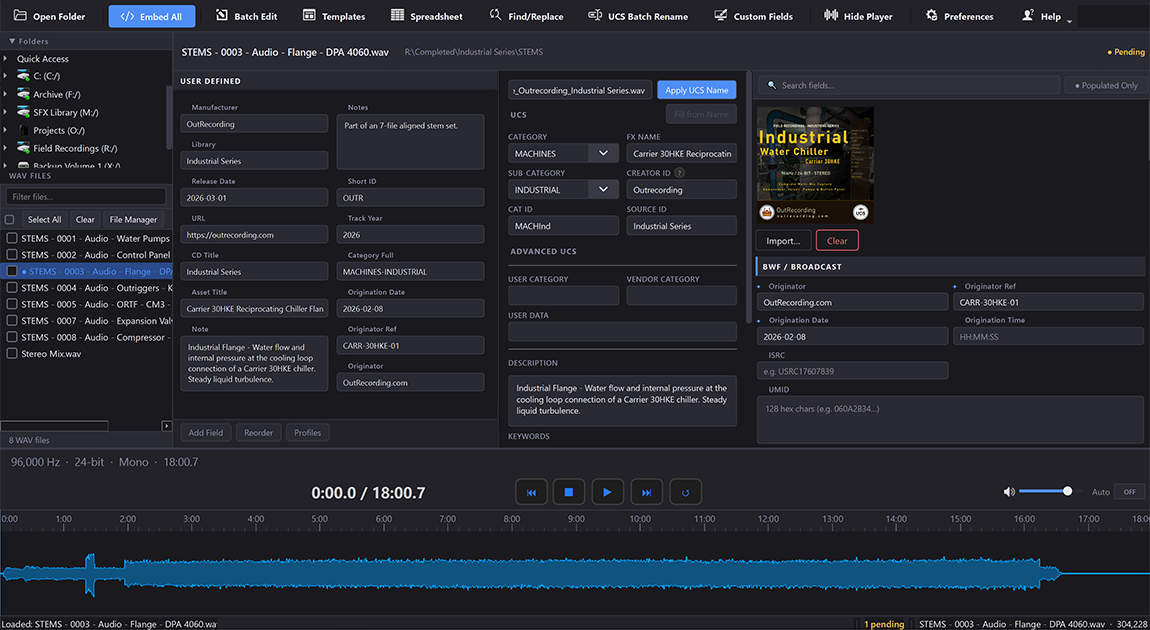
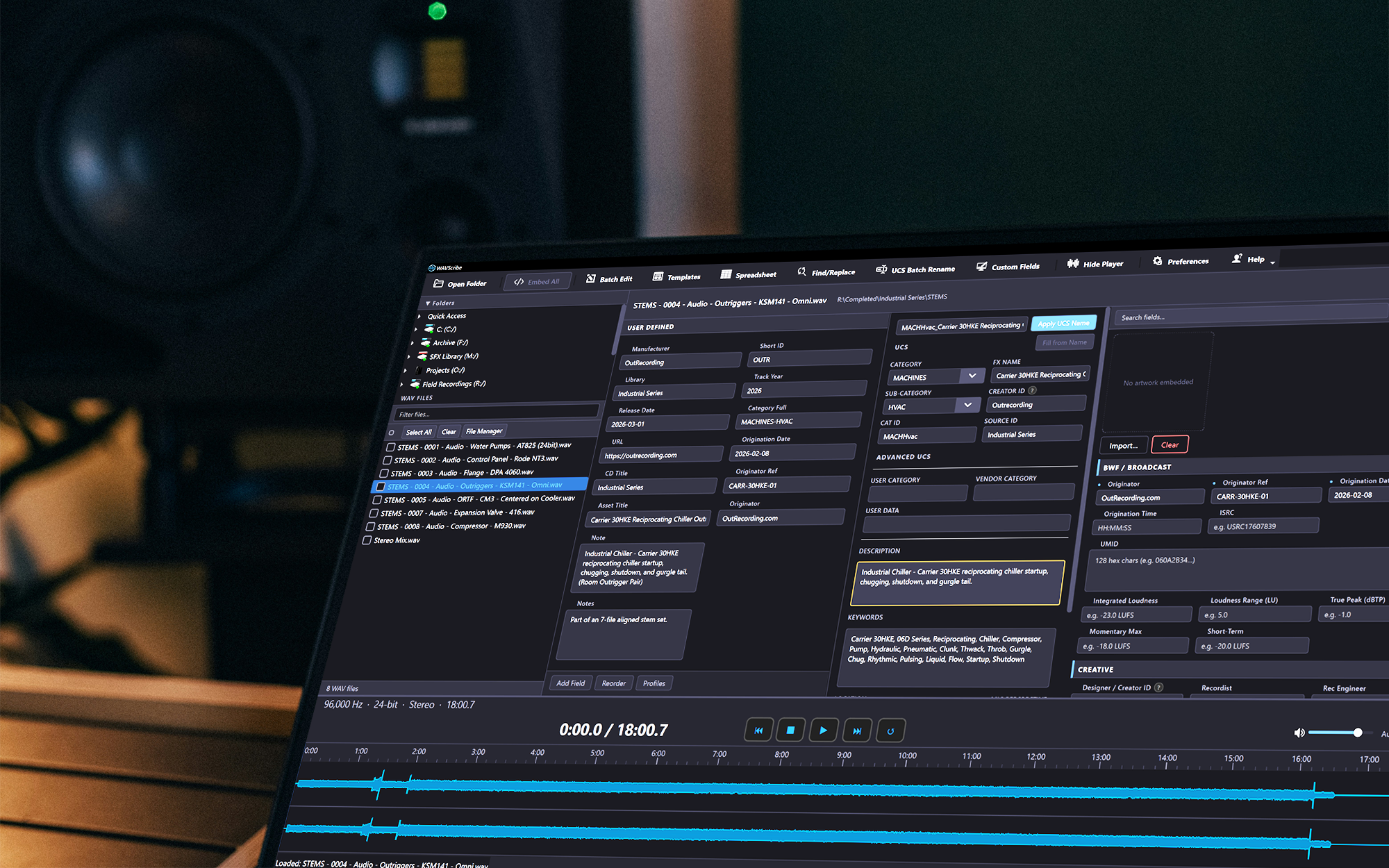
When you embed metadata, WAVScribe writes every editable field to every applicable chunk location inside the WAV in one pass. No more choosing which standard to write to and hoping the next tool can read it.
Pin the fields you use most into a dedicated panel. The User Defined Area lets you arrange those fields in the order you want, so you're not scrolling past seventy fields to find the twelve you actually use. Save layouts as named profiles and switch them when the job changes. Create one setup for field recording, another for game audio, or whatever fits your workflow.
Apply a value across thousands of files. Find and replace with regex. Save and reapply metadata as templates. Bulk-rename to UCS conventions with a live preview. Tested with batches of 101,000 files.
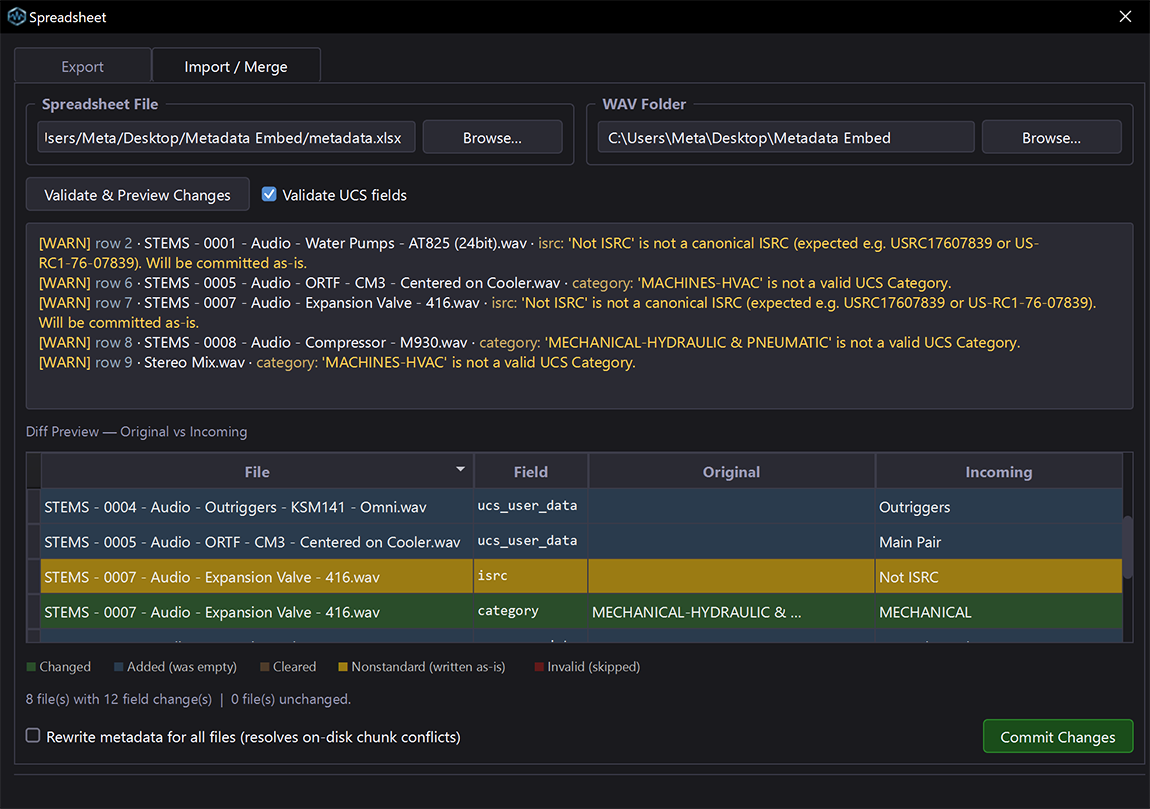
Export your library to a spreadsheet, edit metadata and filenames there, then bring everything back into WAVScribe in one pass. Before anything is written, the color-coded preview shows what will change, and duplicate filenames are caught before they can become a problem.
The complete Universal Category System taxonomy is built in - all 753 category/subcategory entries, with smart Sub-Category filtering and Cat ID auto-population. UCS is fully optional. Every UCS field also accepts freeform text so you're never locked in.
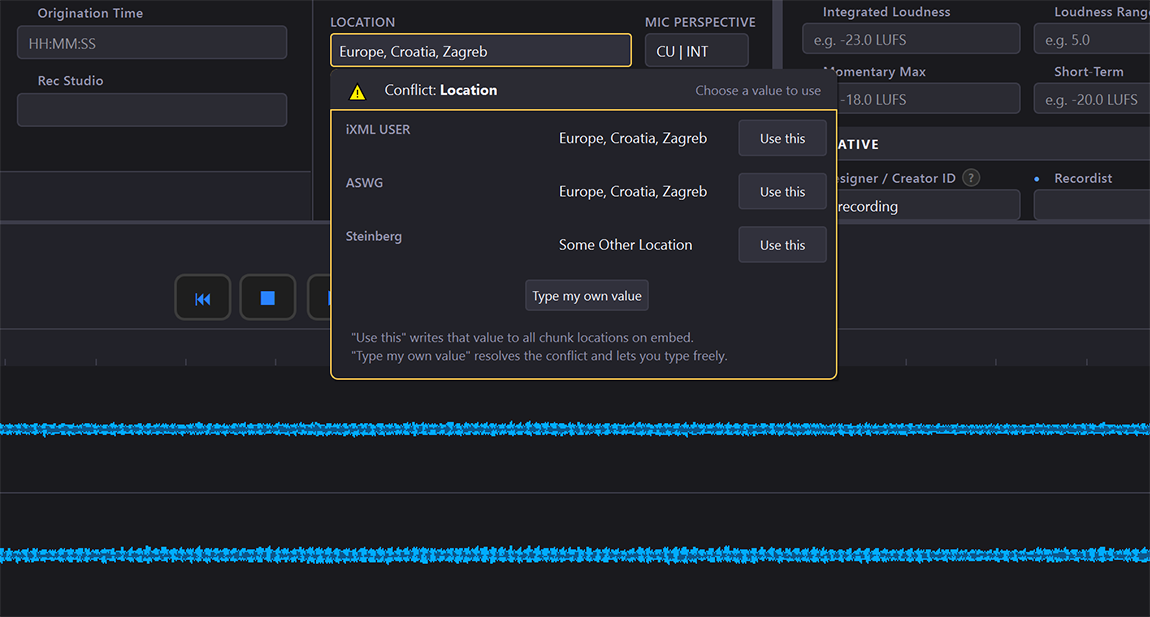
You embed in one program and later notice a mistake. You correct it in another program. The mistake might still exist in a chunk not written to by that second program. Now you have conflicting metadata. And that's just your own files. Commercial libraries sometimes arrive with those conflicts as well. When the same field has different values in different chunks, WAVScribe notifies you of that conflict and shows you what it is, and then lets you choose which value wins. No silent overwrites.
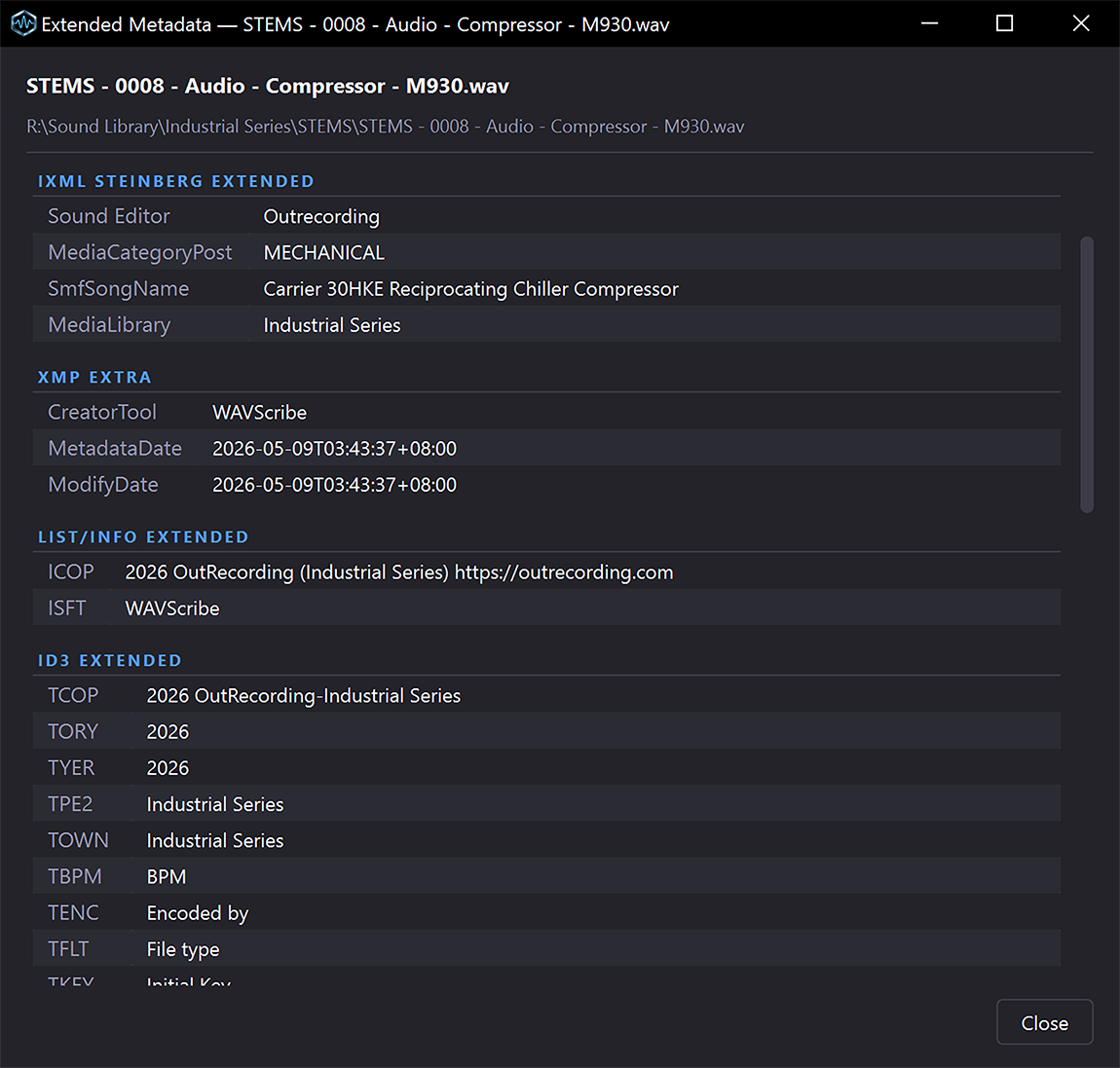
Between the main editor and the Extended Metadata view, WAVScribe surfaces every metadata field it can parse. Anything WAVScribe doesn't recognize is always preserved, never silently stripped.
WAVScribe reads and writes the metadata standards used across professional audio, in standard WAV and RF64/BW64 files. Everything lives inside the file itself. Files embedded by WAVScribe open correctly in the next tool, without needing to convert or re-enter the data.
One perpetual license with all features included. No subscription, and no higher-priced tier required to unlock anything.
Yes - a 7-day free trial of the full app with no feature limits.
WAVScribe is Windows-only at this time. Both Windows 10 and Windows 11 (64-bit) are supported. macOS and Linux are not currently supported.
WAVScribe allows up to two active installations per license. This would typically be a main workstation and a laptop or backup machine. This is a single-user license - it covers you on up to two machines, and we trust our users not to share it. To move your license to a different computer, deactivate the old installation from within WAVScribe (Help → License → “Deactivate This Installation”) before installing on the new machine. If you’ve lost access to your old computer, please contact support at contact@wavscribe.com and we’ll reset your activation count.
It is preserved. WAVScribe only writes metadata defined by publicly documented standards. Any third-party or unknown metadata in your files is left untouched. Nothing is silently stripped on embed. See exactly which standards WAVScribe reads and writes in the metadata field reference.
WAVScribe needs an internet connection for the one-time activation on first launch. After that, it re-confirms your license quietly in the background, at most once every 24 hours, when you launch it - no connection is needed between checks. If you go offline, WAVScribe keeps running normally for up to 30 days from the last successful check, long enough for extended fieldwork. After 30 days with no check, it asks for a connection before continuing; one successful check resets the clock. There is no account to create and nothing runs in the cloud - your files never leave your computer. The app also checks for new versions on startup; that banner can be dismissed or ignored.
WAVScribe checks for new versions on startup and shows a banner if an update is available. Updates within version 1.x are free for all license holders. The decision to upgrade is yours. Nothing auto-installs.
Yes, a full user manual is available at wavscribe.com/manual. It covers installation, basic and advanced workflows, batch operations, the metadata field reference, and troubleshooting.
Yes. WAVScribe was designed around a "do no harm" principle from day one. Audio data is never re-encoded, re-compressed, or modified. Your file's audio bytes are preserved exactly as they were. Metadata writes are atomic: either new metadata commits cleanly to disk, or your original file is left untouched. No partial-write corruption. WAVScribe also implements only publicly documented metadata standards, so anything written to your files is readable by any tool that respects the same specs. Working on irreplaceable masters? Make a backup anyway. That's basic data hygiene with any tool. But WAVScribe is built to be the kind of tool you can confidently run on a working copy.
Yes. Export your library to Excel or CSV, edit the filename column alongside any metadata fields, and import/merge. WAVScribe applies the metadata edits and renames files on disk together in one pass. Duplicate filenames are flagged before any file is touched, and the preview window shows exactly what will change before you commit. Files stay in their original folder and keep their .wav extension. Renames cannot be undone, but the preview window makes that a deliberate decision.
WAVScribe writes the open metadata standards used across professional audio: BWF/bext, iXML (including ASWG and Steinberg extensions), XMP, LIST/INFO, and ID3. Any tool that reads these standards can read files written by WAVScribe. That covers the major sound library managers, asset databases, DAWs, and metadata utilities used in field recording, library production, post-production, game audio, and broadcast workflows. For the complete field-by-field reference, see the Metadata Field Reference.
WAVScribe has been tested with batches of 101,000 files on a Ryzen 7 3800X with 48 GB RAM and a SATA SSD running Windows 10 64-bit, and on an Intel Core i5-10300H laptop with 8 GB RAM and an NVMe SSD running Windows 11 64-bit. Routine work will usually involve a few thousand files at a time, while six-figure batches are more typical of full library migrations. For runs that large, a quiet workstation is recommended.
Requirements: Windows 10 (64-bit, version 1809 or later) or Windows 11, any 64-bit x86 processor from the last decade, 4 GB RAM minimum (8 GB recommended, 16 GB for very large batches), about 150 MB free disk space, and a 1280×720 display minimum. An SSD is strongly recommended for large batch operations, and 1920×1080 or higher is recommended for the full editor layout. Local, external, and network (NAS) drives are supported. Cloud-synced folders are not officially supported. Sync software can lock or modify files while WAVScribe is working with them. Dropbox and Google Drive folders have worked successfully in testing, but for important batch operations, use a local drive and let the sync client upload the changes afterward. An internet connection is required for initial license activation and periodic update checks.
WAVScribe is developed by Formosa Soundworks Studio, a one-person independent studio. The developer is American, based in Kaohsiung, Taiwan, where he operates a long-running voiceover studio and works on field recording and sound library projects. His recording work and blog are at Outrecording.com. Support emails go directly to the developer, so questions are answered by the person who built WAVScribe.
WAVScribe has several ways to edit and rename files, depending on what you need to do. The Which Tool Should I Use? guide covers common tasks and points you to the right tool.
Already using WAVScribe? Support questions are answered here.
Occasional updates about WAVScribe - new versions, compatibility additions, the rare announcement. No marketing or spam.
I read every message and reply personally, typically within 24 hours.